
There's never enough screen in a session. The timeline wants the width, the video wants a corner, and every plugin window fights for what's left. Krotos Studio 3.0 lets you decide how much room it takes. Shrink it to the perform controls and you can play a sound to picture with the edit in full view.
Grab any corner of the standalone window and drag. The app takes as much room as you give it.
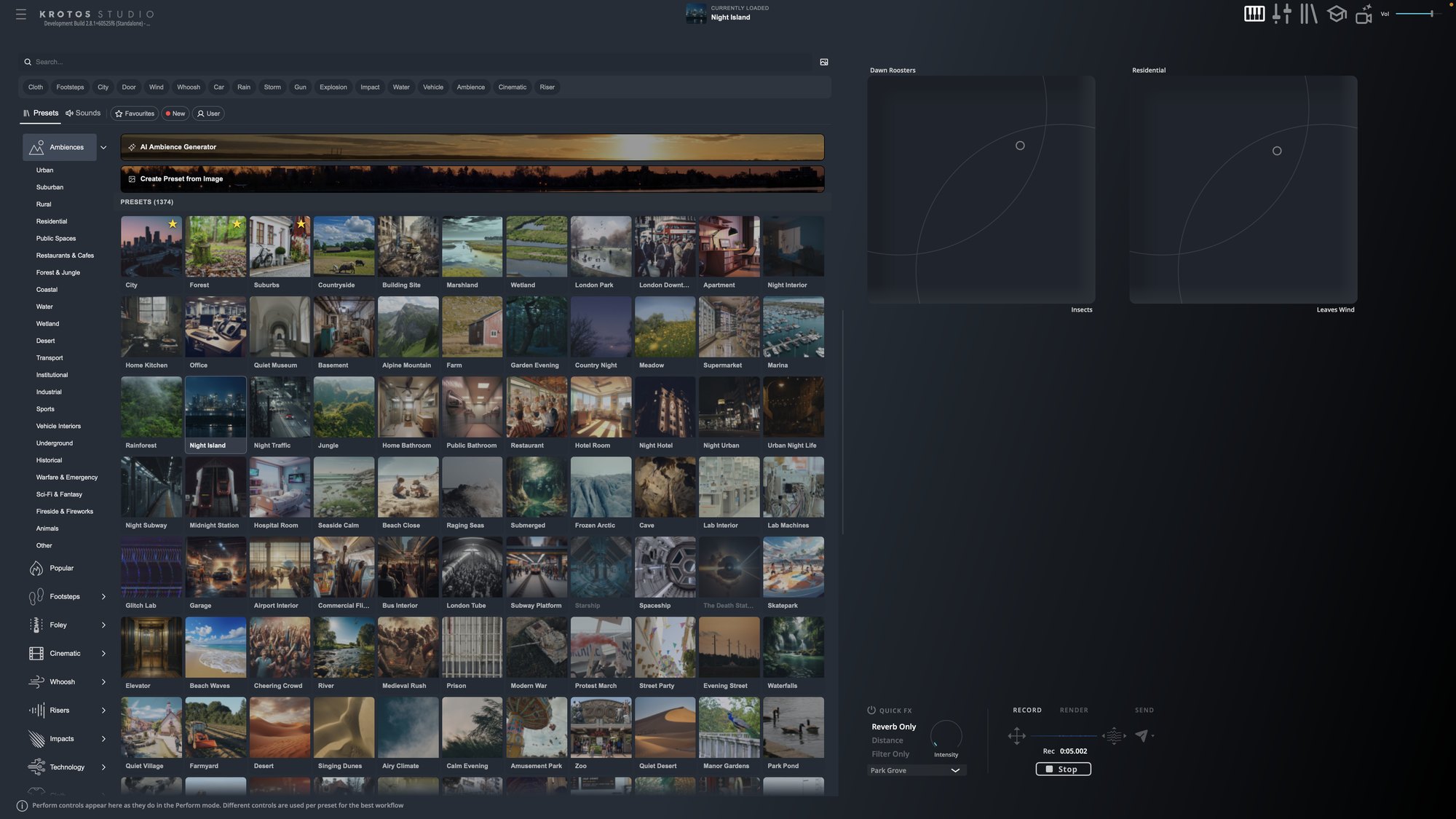
Full screen for browsing
Open the window wide and switch the preset browser to grid view. You can see hundreds of presets at once, which helps when you're hunting by eye through ambiences or impacts and don't yet know the name of what you want.
Perform-only beside your edit
Drag the window down until only the perform controls remain. Park it next to Pro Tools or your NLE, keep the picture in view, and play the take while you watch the cut.
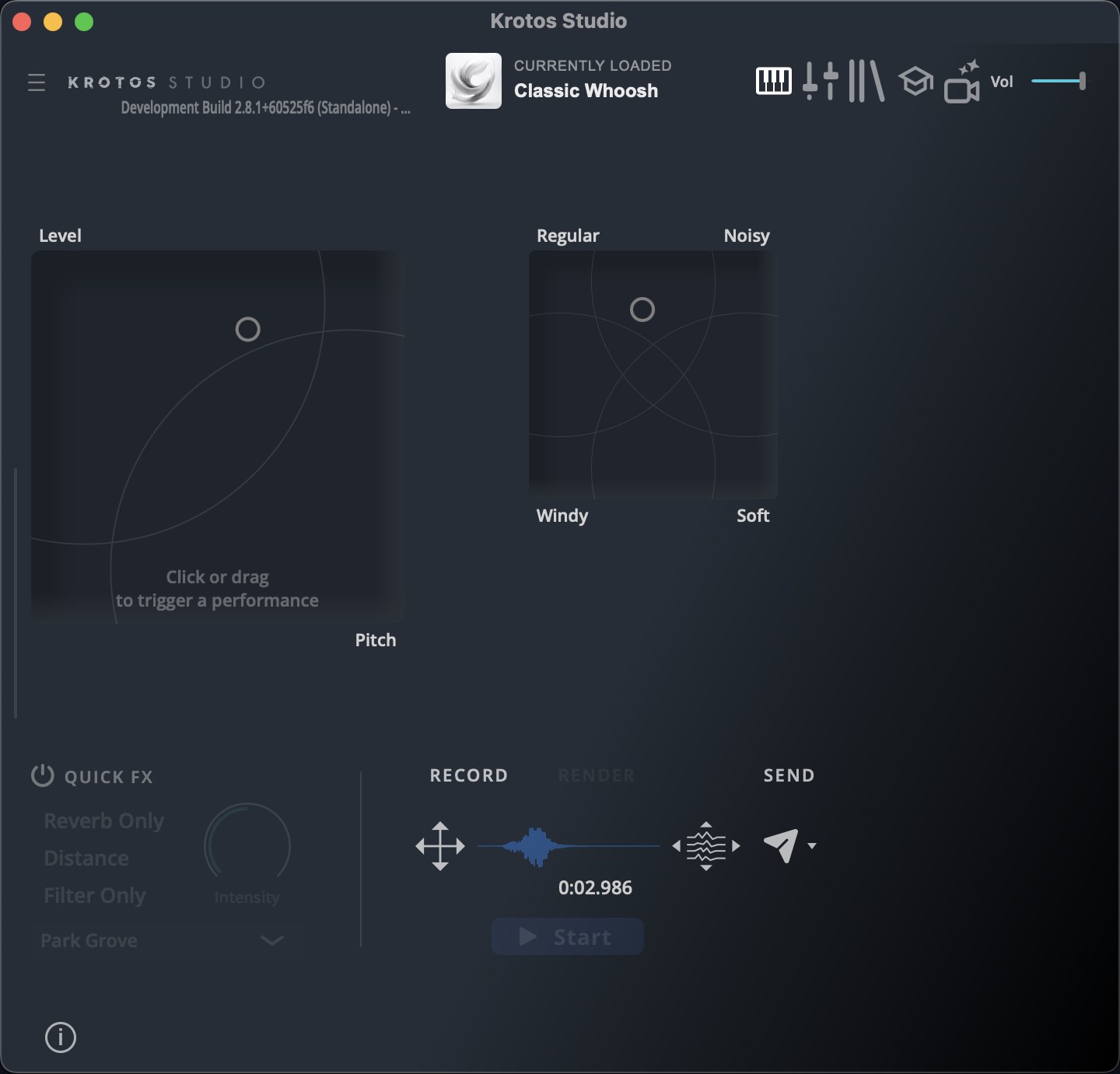
This is where resizing pairs with Send to Pro Tools. Perform, press S, nudge the cursor, go again, all without a window switch.
Get the next one in your inbox. Every part of Krotos Studio 3.0 gets a short breakdown like this one, sent as it lands. Join the Krotos newsletter.
Anywhere in between
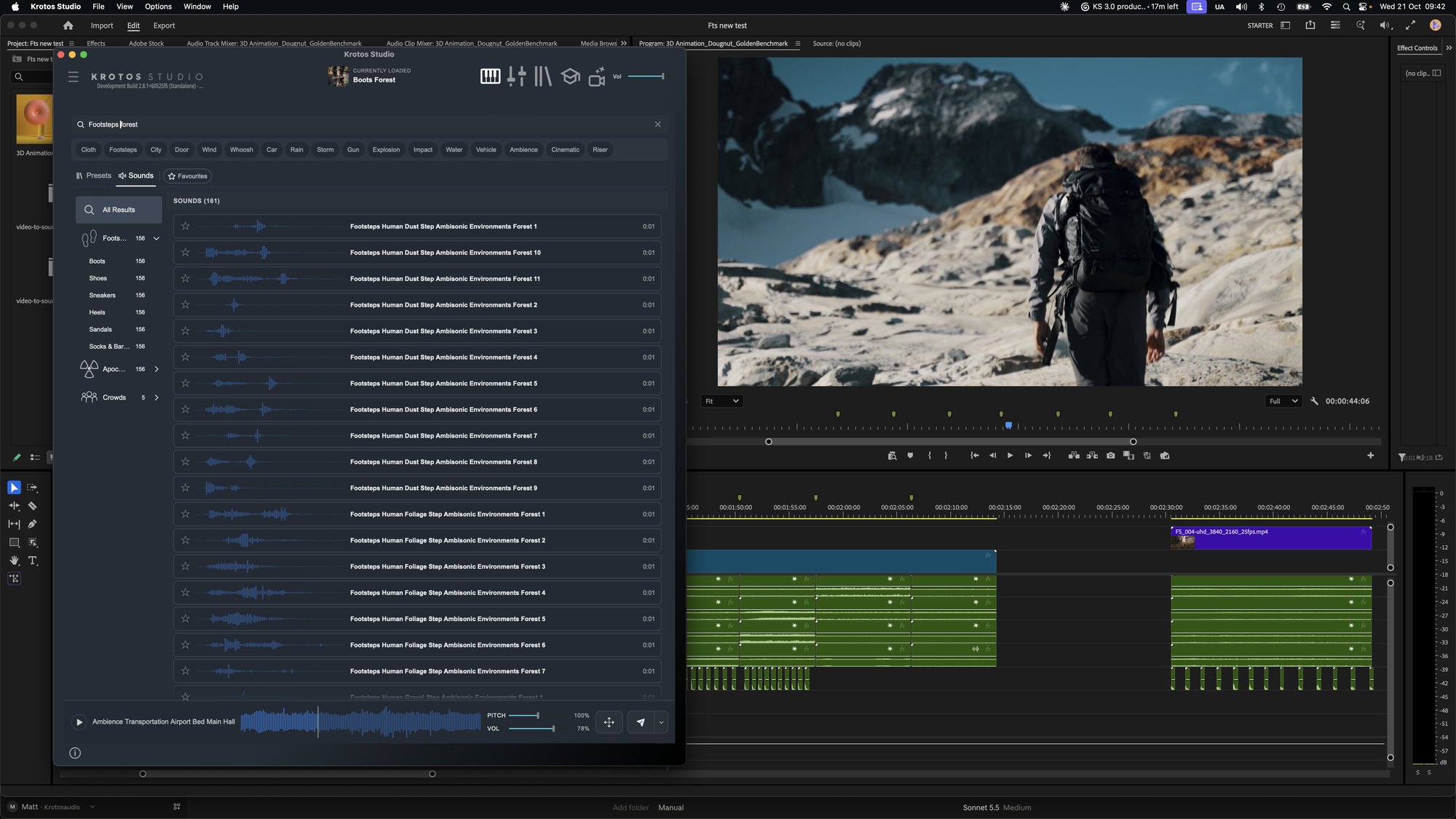
There are no fixed sizes. A half-width window with the Sounds tab open works well beside Premiere Pro: search on the left, drag onto the timeline on the right.
Good to know
- Resizing is available in the standalone app. Plugin windows keep their fixed size.
- Pair it with the browser's thumbnail modes. Grid suits a large window, list suits a narrow one.
More on that in the thumbnail modes breakdown.
Get the next one in your inbox. We're writing up every part of Krotos Studio 3.0 as it lands, plus the new sounds and presets each month. Join the Krotos newsletter.