

Krotos Studio 2.8 rebuilt the browser, and it changed how you find presets. This guide covers the four tools it gives you: search, tags, quick filters and favourites. It also sets out a way of using them together at the start of a project so you spend less time hunting mid-session.
Search: describe the sound if you cannot name it
Search has been rewritten and optimised for speed and accuracy. Two things are worth knowing.
It supports semantic search, so you can describe the sound rather than name the preset. If you know you want something heavy and metallic but cannot remember what it is called, type that.
It returns similar results alongside exact matches, so a search will surface neighbouring presets you might not have thought to look for.
Use search when you have a specific sound in mind. Use tags and filters when you are browsing.
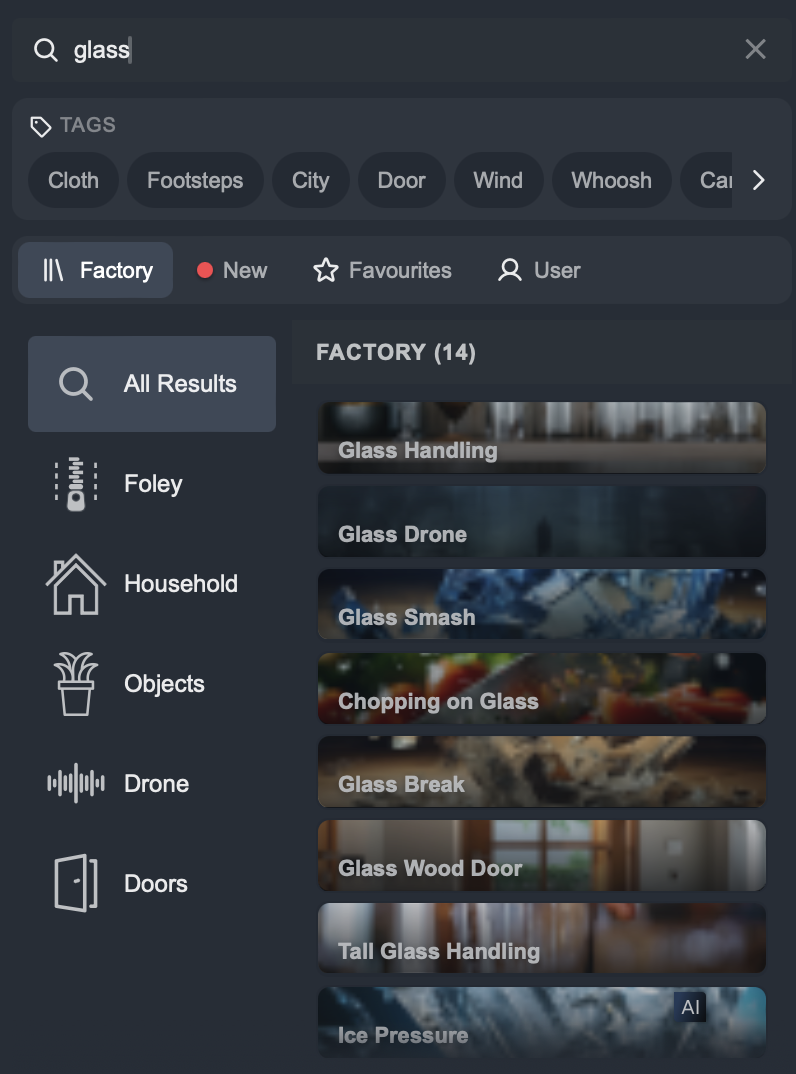
Tags: one click to a popular search
A row of tags sits in the browser covering the searches Krotos Studio users run most often. Click a tag and the matching presets appear straight away, with no typing. Use the arrows at either end of the row to scroll through the full set.
Tags also work inside your Favourites list, which matters once that list gets long.
Quick filters: jump to one part of your library
The quick filter row narrows the browser to a specific slice of your content.
- New shows content you have just installed. If you have downloaded this month's pack and want to hear what is in it, this is faster than working out which categories it landed in.
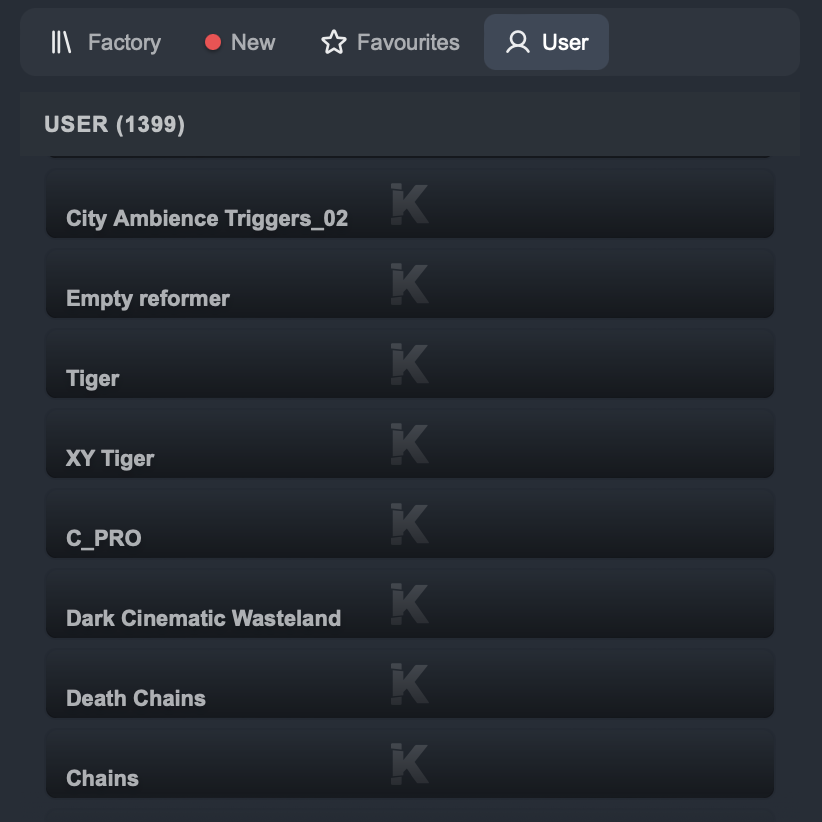
- User Presets lists every preset you have created or saved, in one place, rather than scattered through the browser. The list is searchable, and you can favourite anything in it.
- Favourites opens your starred list.
- The Factory library and other filters are also here.

Favourites: build a shortlist for the project you are on
Favouriting is the feature Krotos Studio users have asked for most, and it is the one that changes a working session the most.
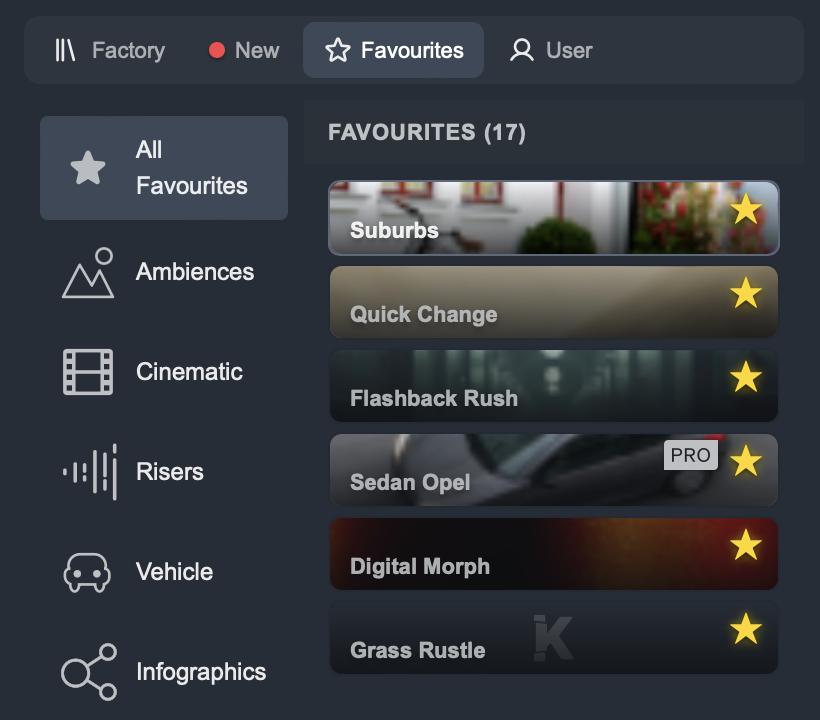
To add a preset, right-click it or click the star icon on its thumbnail. This works on factory presets and on presets you have made yourself.
To find your favourites, open the Favourites quick filter. The list is searchable, listed by category, and filterable using tags.
To remove a preset, right-click it or press the star again while browsing your favourites.
A workflow for the start of a project
Favourites is most useful when you set it up before you need it, rather than during a session.
- Read the brief and search for the four or five sound types the project needs. Star anything that fits as you go, without auditioning properly. You are building a shortlist, not making final choices.
- Use tags to widen the net on each type. If the project needs doors, the door tag will surface presets your search missed. Star those too.
- Open the Favourites filter and audition properly. Remove anything that does not hold up. You now have a project palette.
- Work from the Favourites filter for the rest of the session. When you need something you did not anticipate, search for it and star it if it works, so the palette grows as the project does.
Clear the list between projects, or leave the presets you always reach for.
Your existing content is unaffected
This is a browser update. Your presets are not changed and nothing needs migrating. You can start favouriting as soon as you update to 2.8.
New to Krotos Studio? See what it can do: krotos.studio
